Hardware Language Features - Vscode
Setting a Compilation
Setting a build file
A build pattern can be configured to glob for .f files based on your build system. The default is **/*.f. Then you can run the "Select Build File" Command from the hierarchy view or as a general command.
Setting a top level
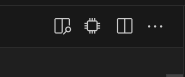
The 'chip' icon at the top right of a file will scan the current file for valid top levels, and find all necessary files for a compilation.
Hierarchy View
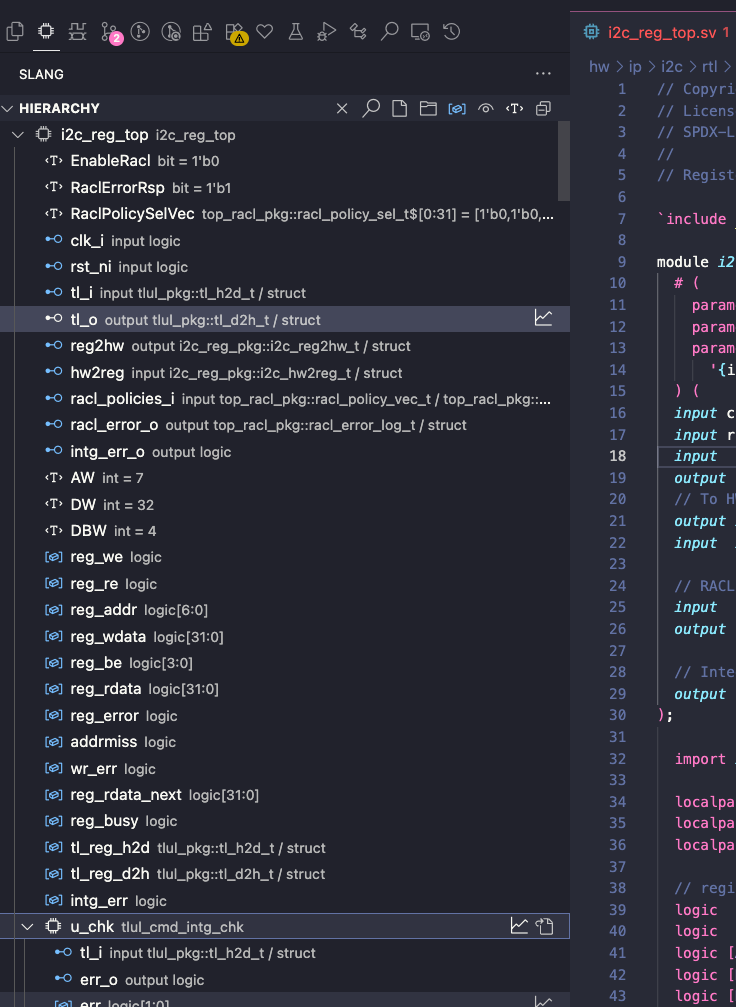
The Hierarchy View shows the elaborated tree, with declared types and resolved values to the right of the identifier. Interface ports and their elaborated members are included alongside modules, generate scopes, parameters, ports, and data signals. Data signals are visible by default. Parameters can be toggled for modules, while package parameters remain visible whenever their package is shown.
Clicking a symbol opens its source location and makes its enclosing module or interface the active instance. The Hierarchy and Modules views follow the new selection. Scopes with no visible children are shown as leaves rather than expandable nodes.
Hierarchy Buttons (left to right):
- Clear top level
- Find in Hierarchy
- Open selected build file
- Select build file (from glob)
- Toggle data signals
- Toggle symbols defined behind macro usages.
- Toggle parameters
- Collapse all
Tree Item Buttons
- Open in waveform (or press
w)- For scopes, this will add the children recursively
- Some signals like structs may not open, this will be fixed in a future release
- Open Module - This will open the module rather than the instance
- Copy path (
cmd+c, or right click > copy path)
Vaporview Buttons
Vaporview is a vscode waveform viewer that integrates with slang-server.
- Open in Editor (or press
ewith selected signal) - At the moment, pressing
eonly works on selected signal, not selected netlist item
Modules View
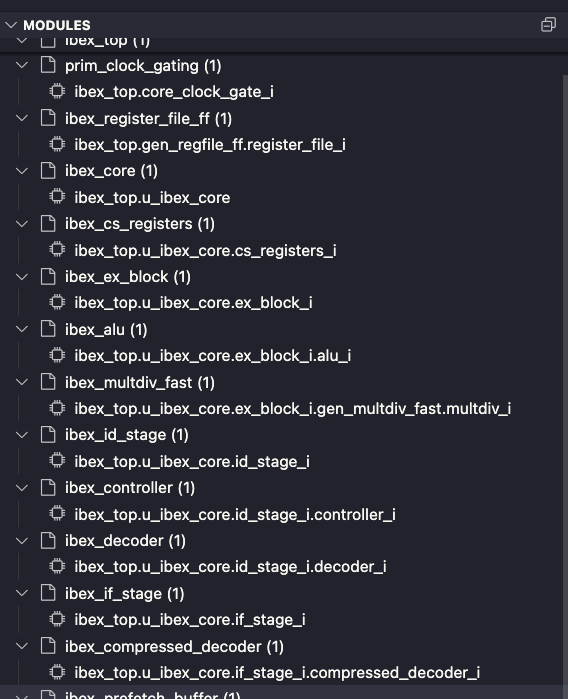
The Modules view groups elaborated instances by their module or interface definition.
Click an instance path to make it active and open its definition. Use the Go to Instantiation button on an instance path to open the instantiation site instead; the view also reveals the corresponding parent instance.
The selected instance determines the resolved parameter values, dependent types and widths, interface connections, and other elaboration-specific information shown while editing that definition.
Active Instance CodeLens
With a compilation active, a CodeLens above each instantiated module or interface declaration displays its active hierarchical path and total instance count. Click it to choose another instance when more than one exists. A neighboring Go to Instantiation CodeLens opens the selected instance's instantiation site.
Generate loops also receive a CodeLens when the active module instance contains multiple elaborated iterations. Selecting an iteration updates the context used by source features.
Instance selections stay synchronized across CodeLens actions, Go to Definition, the Hierarchy view, and the Modules view. Hovers and the inlayHints.activeParameterValues hints update to show values from the selected instance.
Inactive Preprocessor Regions
Code inside untaken preprocessor branches (e.g. `ifdef / `ifndef) is grayed out to visually distinguish it from active code.
The appearance is controlled by slang.inactiveRegions.style:
"opacity"(default) — Renders inactive regions at reduced opacity. Controlled byslang.inactiveRegions.opacity(default 0.55)."background"— Highlights inactive regions with a background color. Controlled byslang.inactiveRegions.backgroundColor(default#1212124C)."none"— Disables inactive region highlighting.
Setting an Instance
Find in Hierarchy
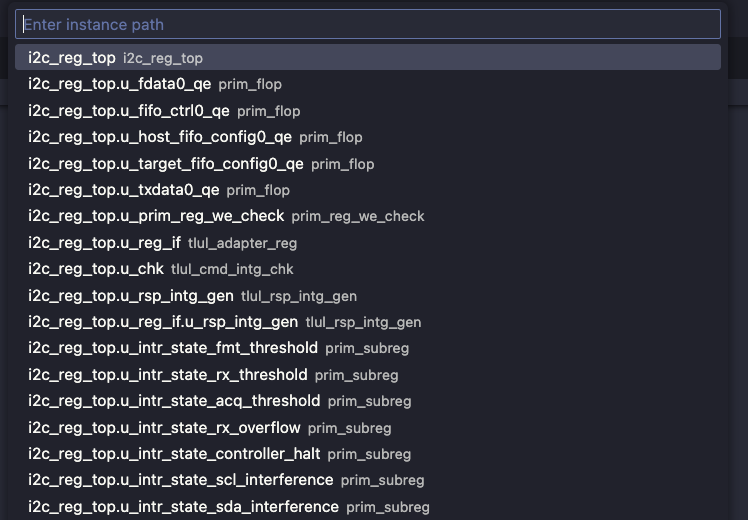
With a build file or top level selected, run Find in Hierarchy from the Command Palette, click the search icon in the Hierarchy view, or press Cmd+F (Ctrl+F on Windows/Linux) while the sidebar is focused. slang: Select Instance opens the same search when invoked without a path.
Search covers the compiled design, including instances, generate scopes, signals, parameters, and interface ports and their members. Enter a name such as ready or a path fragment such as top.worker.ready; you do not need to expand the tree first.
Matching is case-insensitive and accepts fuzzy path matches, with exact names and prefixes ranked first. Results show their hierarchical path and available type or value information. Up to 100 matches are displayed; refine the query if the picker reports more results.
Selecting a result opens its source, reveals it in the hierarchy, and updates the active instance for its enclosing module or interface.
Terminal Links
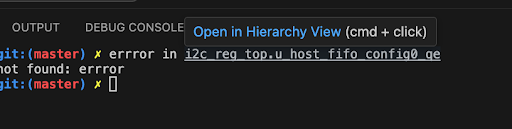
Hierarchical paths are automatically recognized for vscode-integrated terminals. Clicking on these will set the compilation based on the top name as well as the instance. Even if the exact instance can't be found, it will eagerly open the instance and show an error on the invalid id.